
Contents |
Editing departmental web pages via SVNEdit
Many departmental web pages are stored in a Subversion repository. They can be edited using Subversion clients such as the svn command-line client or TortoiseSVN, which give authors full access to the HTML source files on their own computer, along with a free choice of editor, spell checker, AI assistant and scripting tools. That route needs some setting up first (installing software, registering SSH keys), and it remains the only way to browse the history of past changes to a page.
SVNEdit is an in-browser editor for the same repository, meant for simpler edits and for anyone who would rather not install anything.
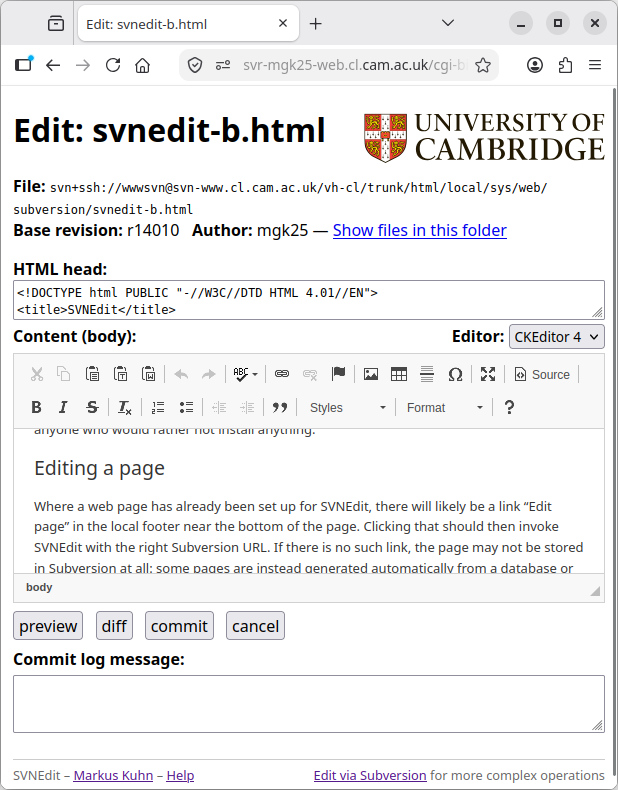
Editing a page
Where a web page has already been set up for SVNEdit, there will likely be a link “Edit page” in the local footer near the bottom of the page. Clicking that should then invoke SVNEdit with the right Subversion URL. If there is no such link, the page may not be stored in Subversion at all: some pages are instead generated automatically from a database or from another file. Where such a page does offer an “Edit page” link, that link may open the data file from which the page is generated, rather than the page itself.
SVNEdit then presents the file fetched from Subversion in a large text box in your browser. For most departmental pages that is a something-b.html file: such pages are generated by ucampas, which adds the navigation menu, header, footer and house style to the plain, undecorated file that authors edit, and writes the result as the finished page something.html that visitors see. The page index.html is therefore edited by editing index-b.html.
The screenshot shows the editing page with the CKEditor 4 WYSIWYG editor switched on; with the plain-text editor, the HTML source of the page appears in the same box.
You can now edit the HTML code there, and then proceed with one of the buttons underneath:
- “preview” – shows what the page will look like, above the editing box (HTML files only)
- “diff” – shows which changes you have made so far that have not yet been saved: a deleted line appears in red with a leading minus sign, an inserted line in green with a leading plus sign
- “commit” – saves your changes to the Subversion repository (“commit” is the Subversion word for saving), such that they become visible on the web site, and then offers to return you to the editor, to the folder that the page sits in, or to the published page (if that does not show your changes yet, your browser may still be displaying its cached copy: press Shift+F5, or Shift+Cmd+R on a Mac, to reload it)
- “cancel” – leave the editor without saving your changes
Underneath these buttons you will find a field for leaving a commit log message. You should enter there a brief summary of what you have changed and why, for others who may receive a commit-notification email about your change, or are browsing the commit history of the page.
Messages that SVNEdit may show you
Several situations lead to a message page rather than to the result you expected:
- “No changes detected – commit suppressed” – you pressed “commit” without having changed anything, so nothing was saved. This is harmless; just carry on editing or press “cancel”.
- “Conflict” – somebody else has saved a new version of the same page since you opened it, and SVNEdit will not overwrite their work without asking. The page shows you both their changes and yours, and lets you choose: copy their changes into your text and save the combined result, or throw your own changes away and start again from their version, or save your version over theirs. If in doubt, check with the other author first.
- “Commit failed” – a red box explaining why your change was
not saved. (Deleting and uploading report “Delete failed” and “Upload
failed” in the same way.) The repository checks every change before it
accepts it, and turns it away if, for example,
- the HTML of the page has a syntax error, such as a missing closing tag, a character that is not valid UTF-8, or the same id= used twice on one page,
- a uconfig.txt file has a syntax error,
- the name of a file that you upload or create contains a space or another unusual character – only letters, digits and . _ - are allowed, and the name may not start with a hyphen or end in a dot,
- a file of the same name, differing only in capitalisation, already exists in that folder, which would cause trouble on Windows,
- you upload or create a ucampas-generated page such as index.html, rather than the index-b.html file that it is generated from.
- “Post-commit message” – a red box that appears even though your change was saved. The saving worked, but something went wrong in one of the steps that follow it, such as publishing the page or sending out the notification email. There is nothing for you to correct in the page; if the message looks serious, pass it on to whoever looks after the site.
- “Automatic HTML check” – a green box listing anything that an automatic check found odd about the HTML of the page, such as an image without an alternative text. These are suggestions only: nothing was blocked, and you may ignore them.
Nothing you save is ever really lost: every version that was ever committed stays in the repository history, so a mistaken change can always be looked up and undone later.
Using a WYSIWYG editor (CKEditor 4)
In addition to the plain-text editor, you can also use the “Editor:” menu to switch to a what-you-see-is-what-you-get editor. Currently available are
- CKEditor 4 (recommended) – also used on Drupal 7
- TinyMCE (experimental) – also used on Moodle
These editors hide the HTML tags and provide an experience somewhat closer to a word processor. However they come with a few caveats:
- they often completely reformat the underlying HTML document when first used, such that the “diff” button then shows almost every line changed, rather than just the lines that you actually edited
- they may remove or distort some more advanced content of a page that someone had originally written in HTML with a plain-text editor
To reduce the impact of the first caveat, SVNEdit offers to commit a pre-normalised version of the page before invoking the WYSIWYG editor. It first shows you what that reformatting would change, so that you can save it as a step of its own. It only tidies up the HTML formatting and should not alter how the page looks. Committing the pre-normalised version will then show you the changes that you actually made in the WYSIWYG editor far more clearly in the “diff” view or in the commit-notification email.
If you would rather not bother, the “Skip pre-normalisation” button takes you straight into the WYSIWYG editor, and SVNEdit will not ask again while you carry on editing that page. Note that this tidying up is not perfect: a later save may still show a few formatting changes that you did not make yourself.
In a WYSIWYG editor, only the visible content of the page appears in the editing area. The technical beginning of the HTML file, which holds the page title and similar settings, is shown separately in a smaller “HTML head:” box above it, and you can normally leave that untouched.
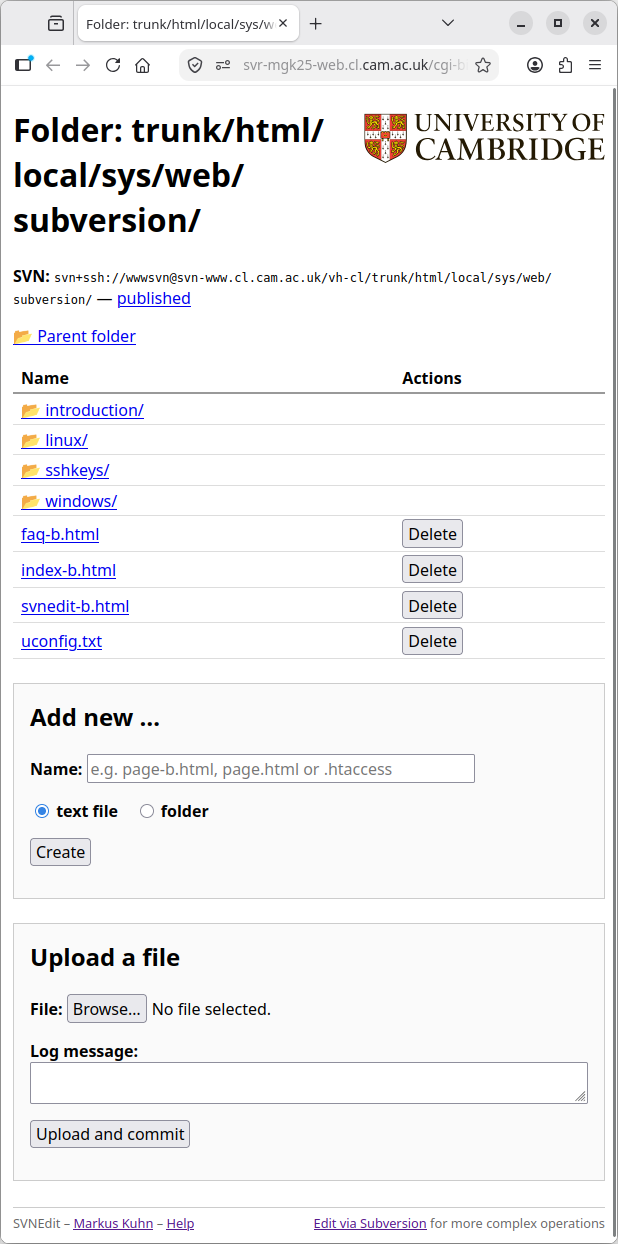
The folder browser
The link “Show files in this folder”, at the top of the editor page, opens a folder browser that lists the other files stored alongside the page you are editing. There you can
- open another file for editing,
- move into a subfolder, or up to the folder above,
- create a new file or a new folder, using the “Add new …” box underneath the listing, where you type the name and choose which of the two you want,
- upload a file from your own computer, using the “Upload a file” box below that, either as a new file or to replace an existing one,
- delete a file, or a folder that is already empty.
Deleting, uploading and creating a folder take effect immediately. You will be asked to confirm before anything is deleted or replaced. Only the “Upload a file” box offers you a commit log message field, so fill that in before you press “Upload and commit”; deletions and new folders are saved under a short message that SVNEdit writes for you. Creating a new file is the exception: it merely opens an empty editor, and nothing is saved until you press “commit” there.
SVNEdit can edit not only HTML files, but also other plain-text files. The folder browser offers an edit link for files whose name ends in .html, .htm, .txt, .css or .js, and for .htaccess files. Everything else, such as an image or a PDF, can still be deleted, or replaced by uploading a new version, but not edited in the browser.
Among the plain-text files you can edit this way are the uconfig.txt files that configure the navigation-menu structure and house-style used, as well as the .htaccess files that tell the web server how to redirect requests or require authorisation to view a page.