
Edit video access permissions
To change the permissions on who can view a video:
- In Panopto, browse to the folder where your video is.
- Click Share next to the video.
- Under Who has access, select your required
option:
- Specific people - usually students enrolled in the corresponding Moodle course
- Anyone at your organisation with the link - any Raven user who has access to the video link
- Anyone at your organisation - any Raven user, and they can browse to the video from within Panopto
You can also change the permissions on a folder, to affect the viewing permissions of all videos within that folder, by using the Folder Settings cogwheel in the top-right.
Restrict access for some or all students
The default access settings are that students enrolled in a course can view all of the videos associated with that course in Panopto. You can however restrict access for all students, or permit access for specific individual students (e.g. students with disabilities).
Restrict access for all students
- In Panopto, browse to the folder where the videos are.
- Click on Folder settings from the cogwheel in the top right.
- On the settings tab, set Availability to Never.
Permit access to individual students
To restrict access for some students and permit access for other students:
- In Panopto, browse to the folder where the videos are.
- Click on Folder settings from the cogwheel in the top right.
- On the share tab, click the cross to remove access for people who
are Viewers. This removes access for all students who are enrolled in
the Moodle course.
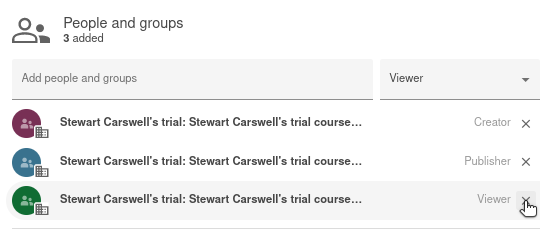
- Permit access to individual students by entering their CRSIDs into the Add people and groups box.
Restore default Panopto access permissions
If you remove access for people who are Viewers, then you can restore the Panopto defaults to grant access for all students again:
- Go to the Moodle course connected with this Panopto folder, and turn editing on.
- Click the cogwheel on the Panopto block, and click Configure Panopto block.
- Click Sync this course to Panopto.
Enabling video downloads
To allow students to download the videos:
- In Panopto, browse to the folder where your video is.
- Click Settings next to the video.
- On the Overview tab, under Session information, change the Download setting to Authenticated users with access.