
Hybrid Meeting Facilities
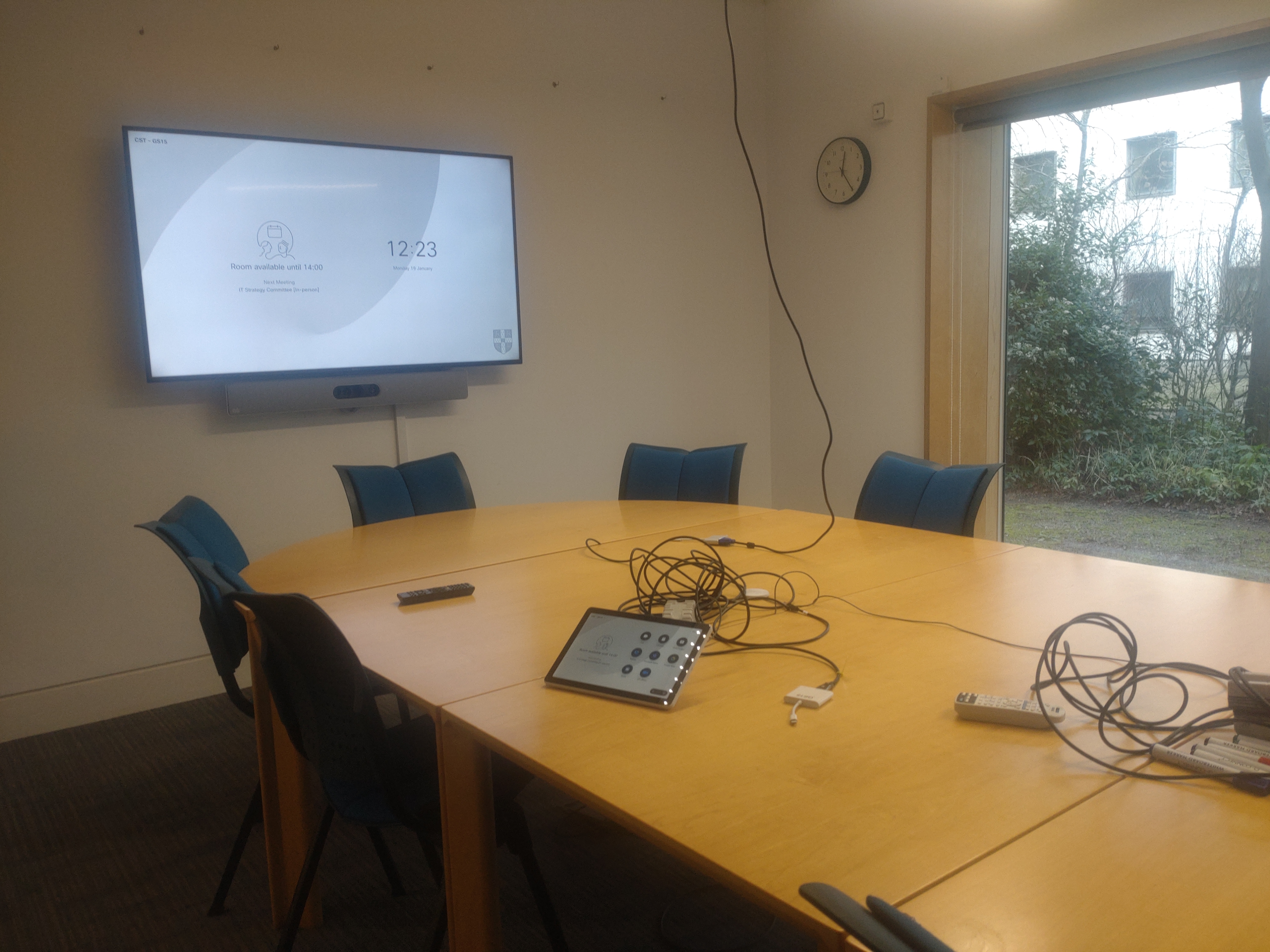
This page provides instructions for using the hybrid meeting facilities within the department. These instructions currently apply to room FW11, GS15 and GC22. The instructions may be updated in future as additional rooms are enabled with hybrid meeting capabilities.
Basic Instructions
Before The Teams Meeting
Creating a Meeting Using
Outlook
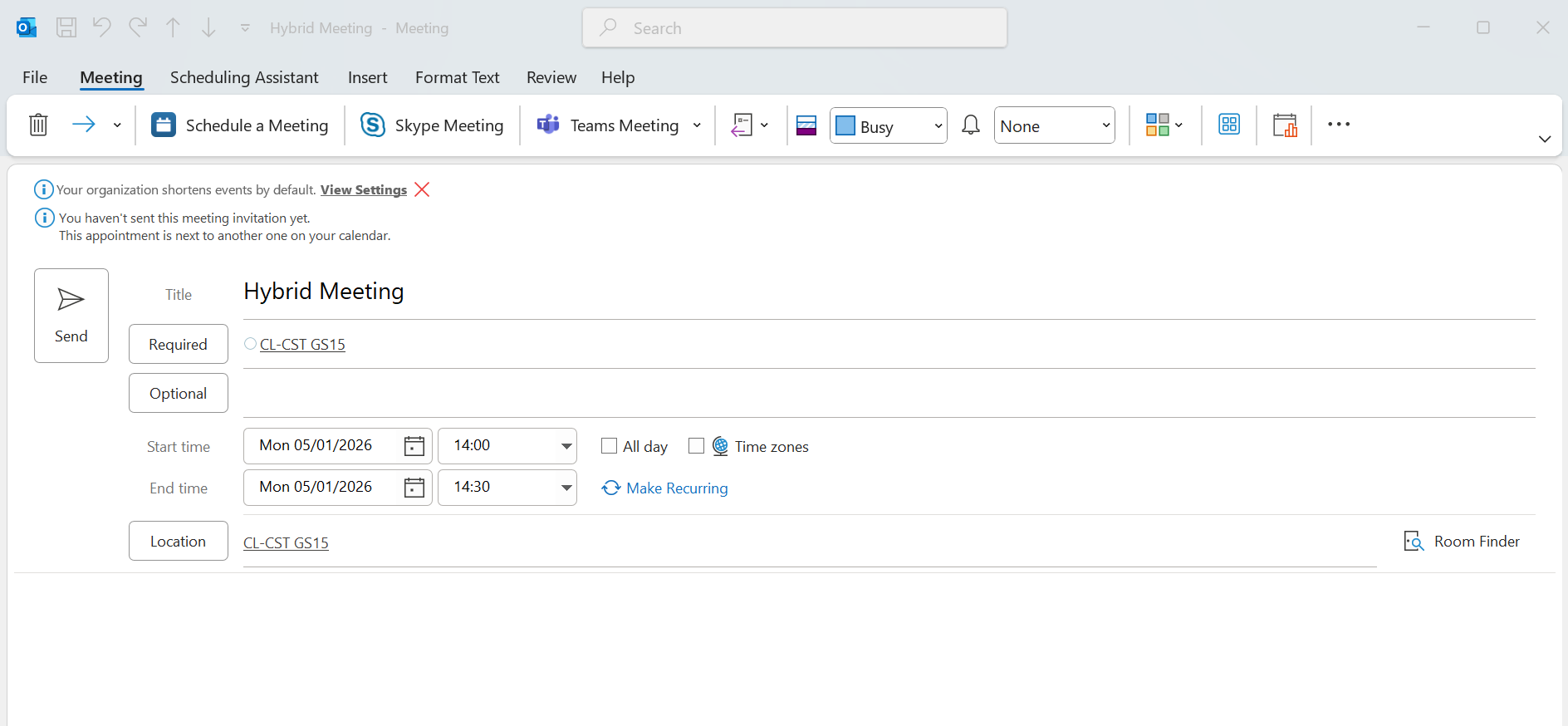
You can create a hybrid meeting using Outlook by following the steps below:
- Open Calendar in Outlook.
- Double-click the correct date to create a new event.
- Enter a meeting title.
- Set the start and end times.
- Add the meeting room as a
Required participant
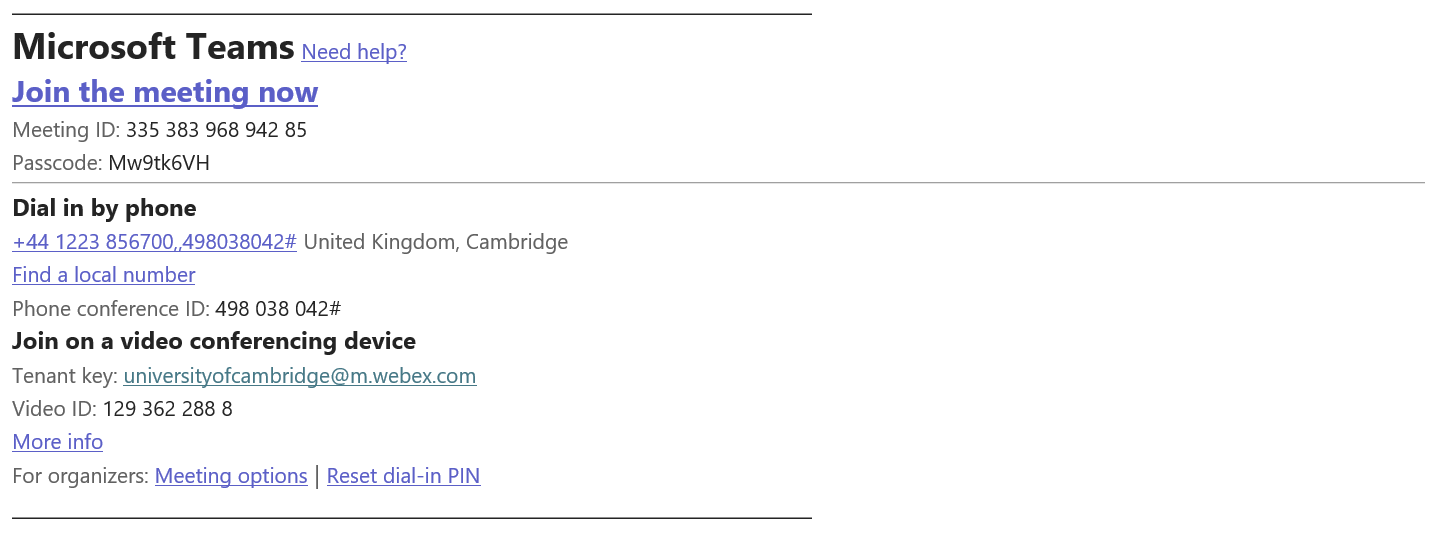
(e.g. “CL-CST GS15” - important). - Click Teams
Meeting to ensure a Teams meeting is created
(important). - Add attendees as Required or Optional.
- Click Send.
Creating a Meeting Using
Teams
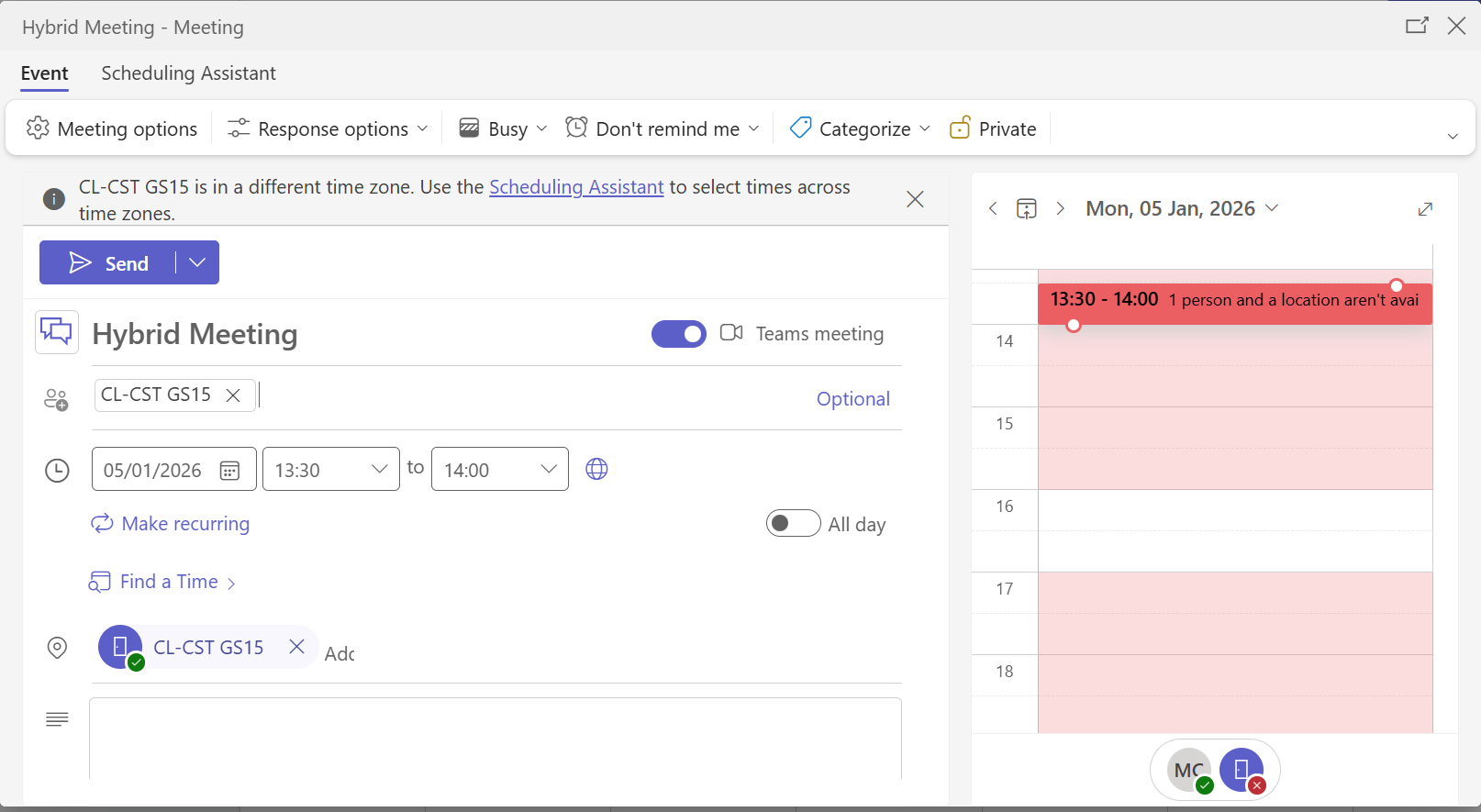
You can also create the meeting directly in Teams:
- Open Calendar in Teams.
- Double-click the correct date to create a new event.
- Enter a meeting title.
- Set the start and end times.
- Add the meeting room as
an attendee
(e.g. “CL-CST GS15” - important). - Ensure the Teams
Meeting toggle is switched on
(important). - Add attendees.
- Click Save.
Basic Teams Meeting Controls
Starting a Teams Meeting
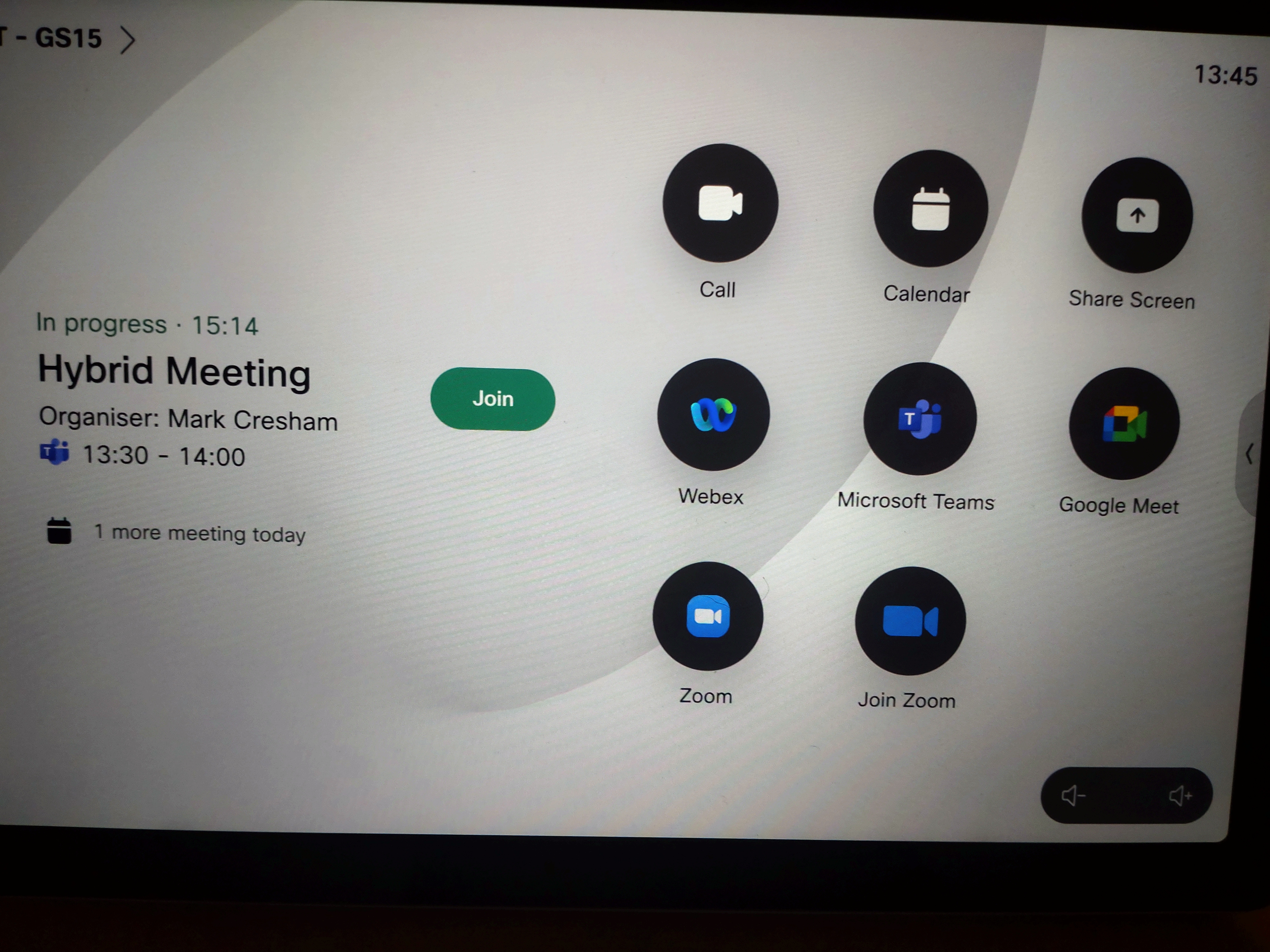
Meetings created in Outlook or Teams will appear automatically on the Room Navigator (tablet on the table), as long as the room was invited as a participant when following the above steps.
To start the meeting:
- Tap Join next to the correct meeting.
Adjusting Volume
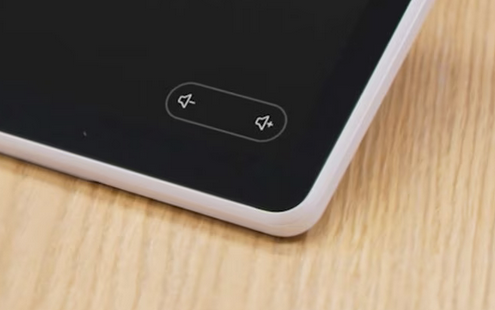
The call volume can be adjusted using the volume slider located in the bottom-right corner of the Room Navigator (tablet on the table).
Leaving a Teams Meeting
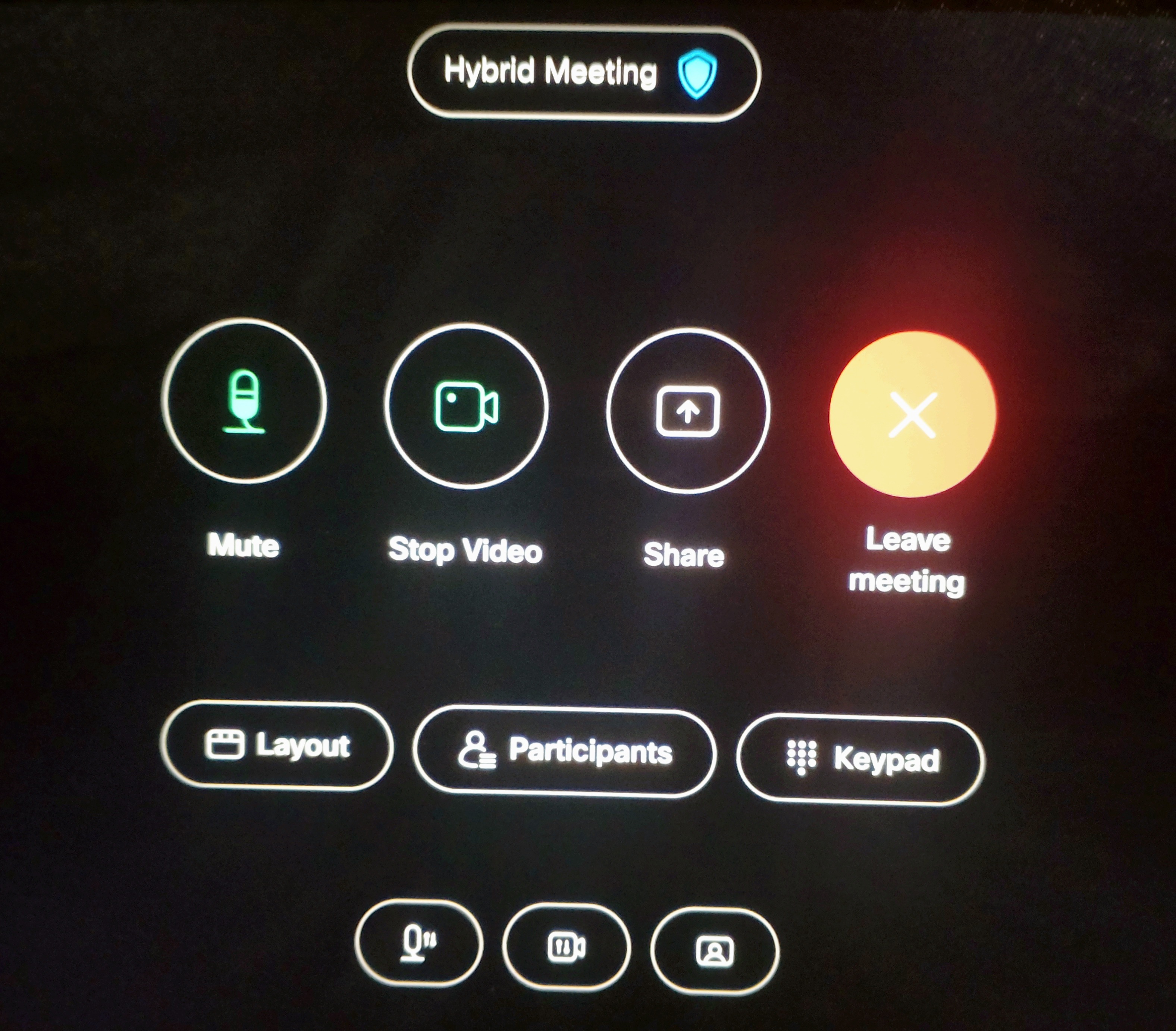
Once the meeting has started, a new meeting control page will appear on the Room Navigator.
To leave the meeting:
- Tap Leave meeting.
Joining a Teams Meeting
Manually (Not Recommended)
Manual joining is available but should only be used if the scheduled meeting does not appear automatically.
Additional Instructions (if required)
Main Meeting Page
Primary controls
- Mute – Mute or unmute the table microphones
- Stop Video – Start or stop the room camera and/or screen sharing
- Share – Share a connected device (see Screen Sharing below)
- Leave Meeting – Exit the meeting
Additional controls
- Layout – Change the meeting layout on the main display (see Layout Options below)
- Participants – View meeting participants
- Keypad
– Send DTMF (Dual-Tone
Multi-Frequency) signals
(rarely required)
Device controls
- Microphone icon – Open microphone options (further details below)
- Camera icon – Open camera options (further details below)
- Selfview icon – Open selfview options (further details below)
Screen Sharing
Share within the meeting
- Share in call – Shares the connected device’s screen with meeting participants
- Stop sharing – Stops sharing within the Teams meeting
Share within the room
only (meeting or no meeting)
- View – Displays the connected device on the room display
- Hide – Stops displaying the device in the room
Changing the Meeting Layout
Change how participants
show
The icon for each layout symbolises how the layout will appear.
- Grid
- Large Gallery
- Stack
- Overlay
- Prominent
- Focus
Additional option:
- Hide participants without video (toggle on/off)
Microphone Options
How microphones pick up
sound
- Neutral – Captures all sounds in the room
- Noise removal – Focuses on voices and reduces background noise (recommended)
Camera Options
Camera Control Modes
You can choose how the camera behaves:
- Group – Automatically frames everyone in the room
- Speaker – Follows the active speaker
- Frames – Zooms in and frames people individually or in small groups
- Manual – Manual camera control (not recommended)
Selfview
Selfview shows what the room camera is capturing (what remote participants see). You can control:
- Show selfview – Toggle on/off
- Full screen – Toggle full-screen selfview on/off
- Selfview position – Choose where it appears on the display
Other Platforms
Zoom and Google Meet
Microsoft Teams is recommended for hybrid meetings. However, Zoom and Google Meet are also supported.
Using Zoom
To join Zoom meetings, a Conference Room Connector (CRC) licence is required.
To start a Zoom meeting using the Room Navigator:
- Tap Join Zoom.
- Enter the Meeting ID.
- Enter the Passcode.
- Tap Join.
Using Google Meet
To start a Google Meet using the Room Navigator:
- Tap Join Google Meet.
- Enter the Meeting code.
- Tap Join.