
Using videos within a Moodle course
To display a video within a Moodle course, you can either embed the video so that it plays using Moodle's video player, or provide a link to Panopto video so that the video plays using Panopto's native player. This second option provides easier access for viewers to Panopto's built-in features.
Embed a video within a Moodle course
- On the Moodle course, turn editing on, and click Add an activity or resource.
- Select either Label (to display the video on the Moodle course page) or Page (to display the video on its own page).
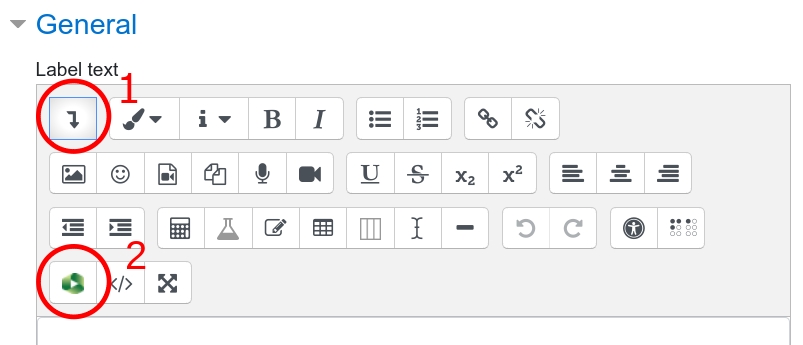
- In the page content editor, click Show more
buttons, and then click Panopto.
- Select the folder, and then select the video to insert.
Create a link to the Panopto video
- On the Moodle course, turn editing on, and click Add an activity or resource.
- Select URL.
- In Panopto, browse to the folder where your video is. Click Share next to the video and copy the link URL.
- Paste this URL into Moodle in the External URL field.
Embedding videos on a web page
To embed a video on a web page outside of Moodle:
- In Panopto, browse to the folder where your video is.
- Click Share next to the video.
- Click Embed, edit the settings if necessary, and then copy embed code.
- Paste this code onto your web page.